
One install.
Four ways in.
Worca ships as a web UI, a CLI and a skill for Claude Code, all running the same deterministic engine. Run it on your machine, in a container, or on a server for the whole team.
One npm package: engine, web UI and CLI. macOS, Linux and native Windows.
npm install -g @worca/app
Add a project, click New pipeline, describe the task.
worca ui
# worca ui status · restart · stop
Point at any project and describe the work.
worca --project . \
  --prompt "Add a /search endpoint"
Needs Node.js ≥ 22.13 and the Claude Code CLI for real runs; it can use Claude, Copilot or local models. Want a zero-cost tour first? --mock runs the whole pipeline offline, with no tokens spent.
Writes the compose files, seeds your projects folder, timezone and git identity.
worca container up
# add-ons: --with egress,ssh,teams
Then open the UI on localhost:4317. Mock mode works before you log in.
worca container login
Download compose.yml, then start it next to that file. Docker Desktop (macOS, Windows with WSL2), Docker Engine or Podman.
echo "WORCA_PROJECTS=$HOME/dev" > .env
docker compose up -d
Your projects are mounted; your home folder is not. See the container guide for git credentials, the egress allowlist and clone-in mode.
Any host that runs containers: a VM with Docker Compose, your own cluster, or a platform like Railway.
docs/docker.md ↗Cloudflare Access, which Worca verifies itself, or your own proxy (oauth2-proxy, Tailscale, …) passing the signed-in user in a header. Every action records who did it.
docs/remote-access.md ↗A separate key service holds everyone's model key or Claude subscription. Worca holds none.
docs/credential-broker.md ↗Then add projects by pasting a repository URL. Want a worked example? Railway + Cloudflare Access, step by step. What a shared Worca gives the team →
The skill ships in the same npm package.
npm install -g @worca/app
Adds /worca to the project's Claude Code.
worca --install .
The skill starts the same deterministic orchestrator.
/worca Add a /search endpoint
  with pagination
Already have a workflow in Worca? Export it as a Claude Code skill and it runs without Worca installed.
Worca shows you
where to click.
A Getting started page lists the first things to do, from connecting Claude Code to turning on team metrics. Click a step and Worca highlights the exact button on the real screen, and ticks it off once you've done it.
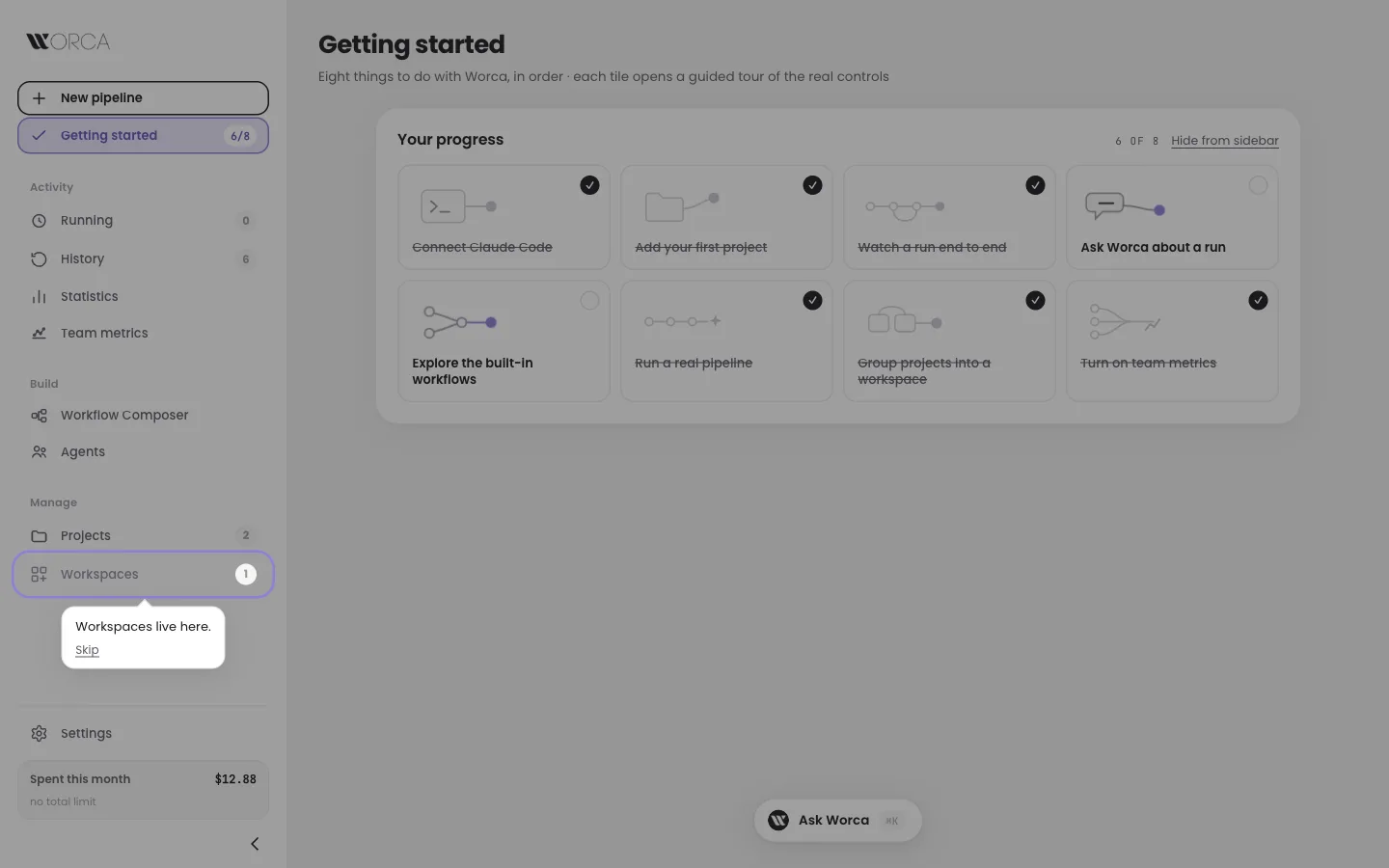
Getting started: the workspace step points at Workspaces and waits for your click.
- ✓Connect Claude CodeWorca checks it's installed and signed in, and says plainly which one is missing.
- ▤Start on SimpleNew installs show only what a run needs. Switch to Advanced or Expert any time; nothing is switched off, only tidied away.
- ⌬Try it for freeMock mode runs the full pipeline offline, and local models cost nothing.
- ❝Ask as you goAsk Worca knows the app and your runs. Press ⌘K (Ctrl+K) on any screen.
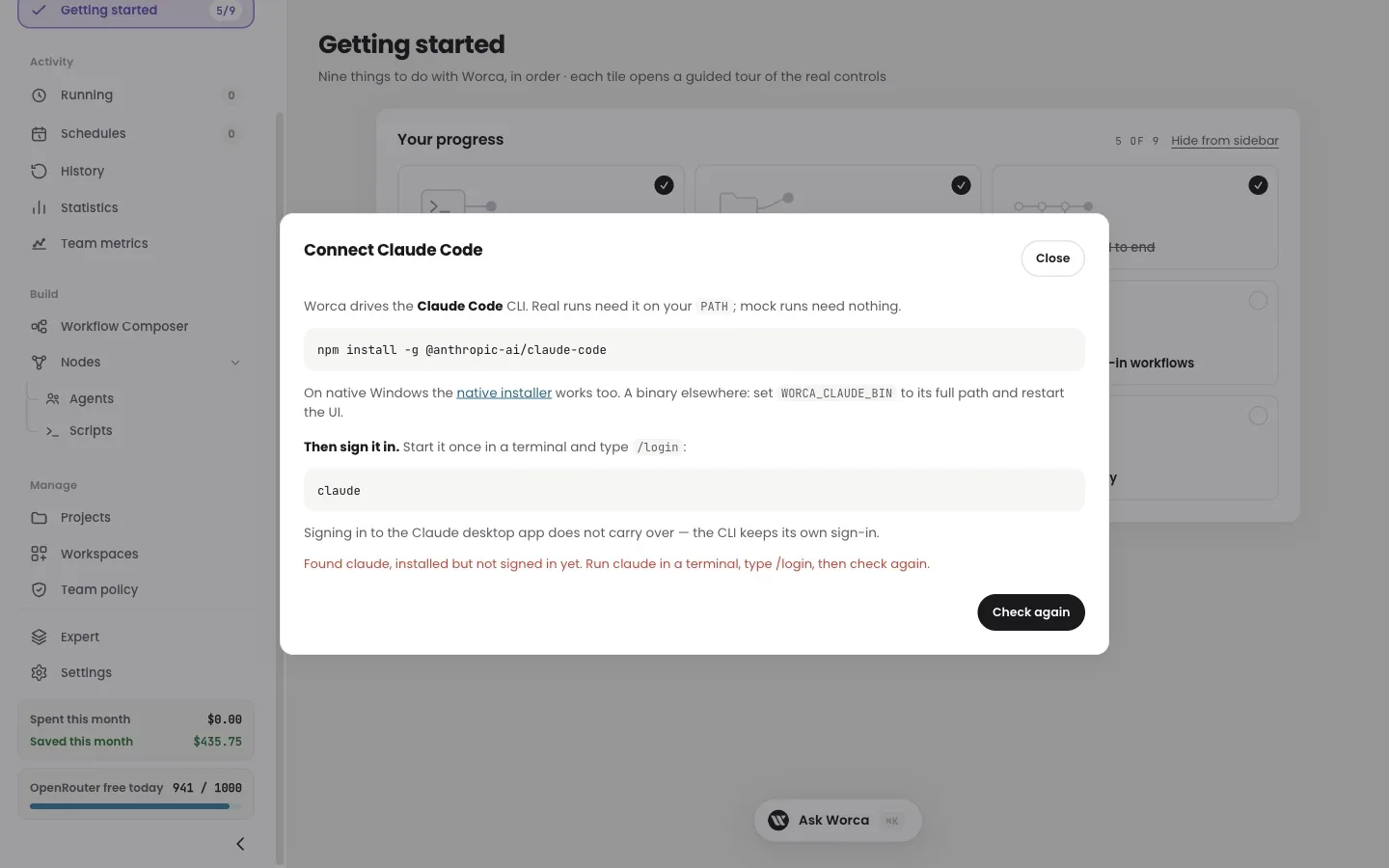
Connect Claude Code: a status that tells “not installed” and “not signed in” apart.
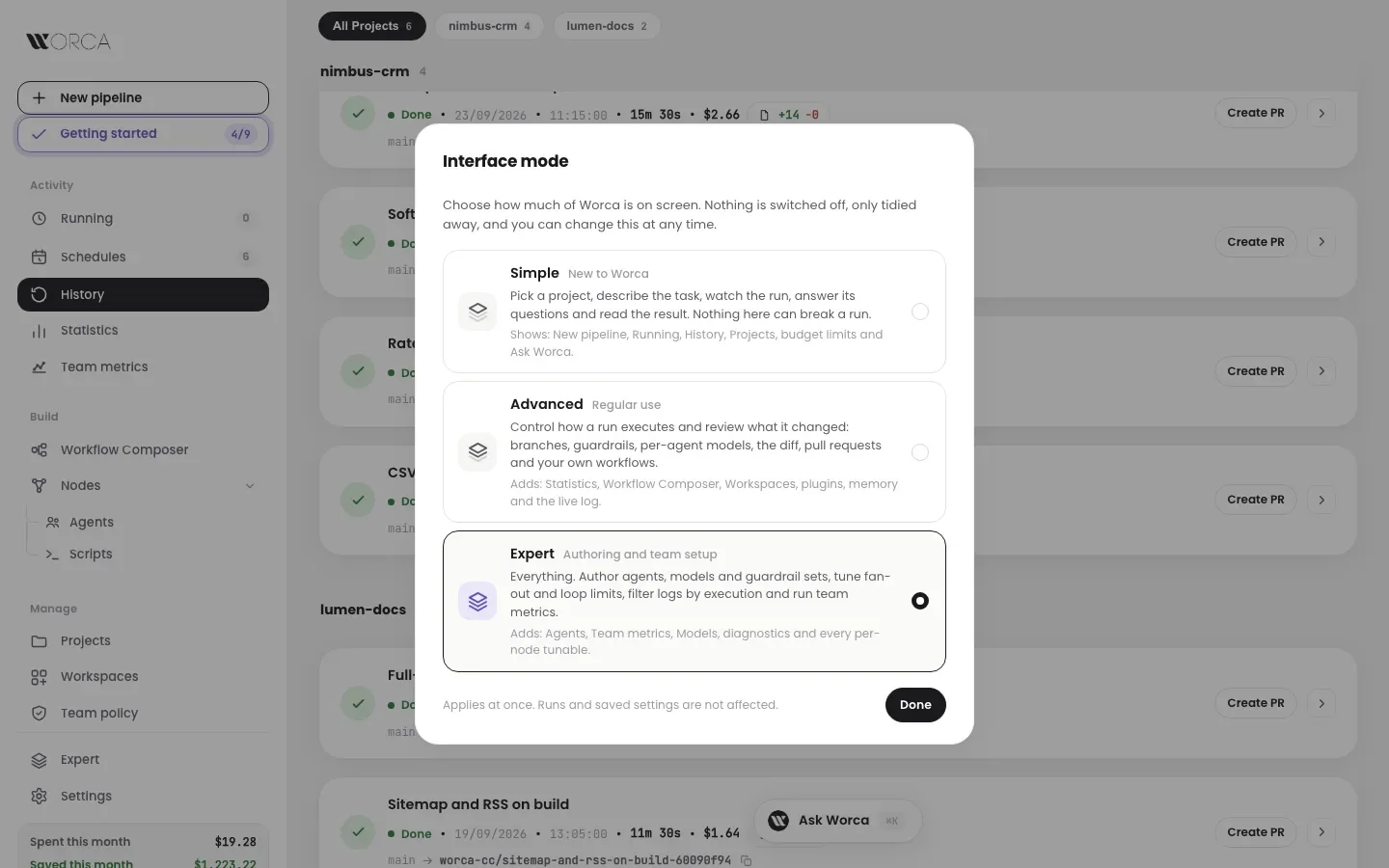
Simple, Advanced or Expert: one click from the sidebar.